 odds+endpoints
Custom macOS Defender Antivirus Compliance with Microsoft Intune
 Nick Benton on
It's finally here, we can at last use custom compliance on macOS devices in Microsoft Intune. Time to make sure your device fleet is actually protected by Microsoft Defender.
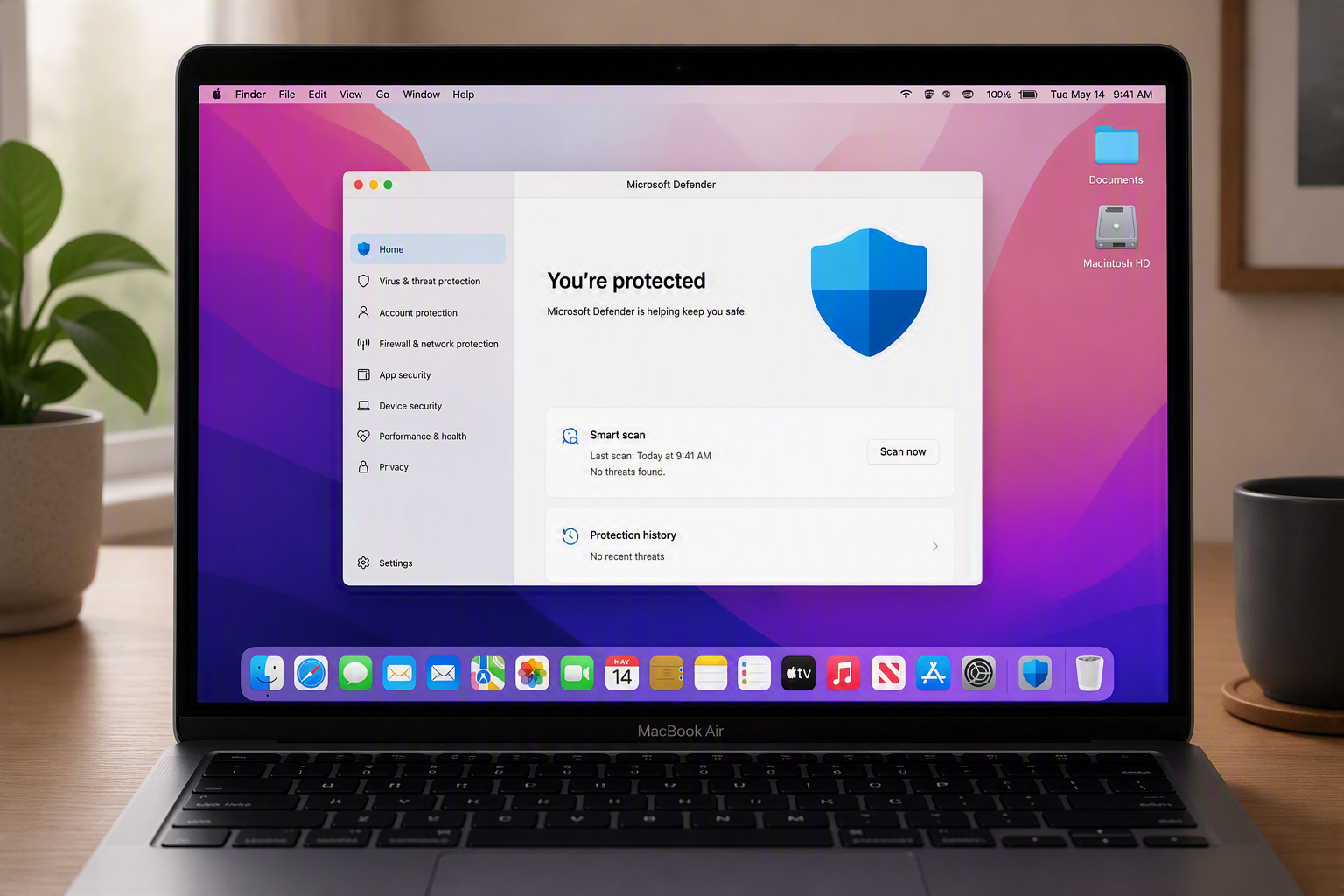
This feels like it’s been a long time coming, but Custom compliance has finally surfaced for macOS after being available for both Windows and Linux for some time in Microsoft Intune.
We’re no stranger to antivirus based compliance policies, having used custom compliance for non-Microsoft solutions before.
However this time, we can use these custom compliance scripts for Microsoft antivirus solutions (that’s Defender if you hadn’t realised), just on macOS devices instead.
Custom Compliance
The principle for custom compliance on macOS is the same with the other operating systems, a discovery script and a validation check. If you take Microsoft’s word all you need for macOS is the script to echo out a value and that’s all there is to it:
# Fixed variables
attribute="CFBundleShortVersionString"
InfoPlistPath="/Library/Intune/Microsoft Intune Agent.app/Contents/Info.plist"

# Read the version string from the app's Info.plist and return it
if [[ -f "$InfoPlistPath" ]]; then
    ver=$(plutil -p "$InfoPlistPath" | grep "$attribute" | awk -F'"' '{ print $4 }')
    echo $ver
else
    echo "not installed"
fi
Well, this isn’t the actual situation, you still need the script to return a single-line JSON object otherwise you’re going to be in for a bad time 😅.
Other things to note about the script requirements:
- Obviously a valid shebang:
#!/bin/bash - Has to be UTF-8 encoded with no Byte Order Mark (BOM)
- The script should
Exit 0for success - No massive scripts above 1mb or that run longer than 10 minutes
With that cleared up, onto the script.
- or _.Defender Health Status
As we care about the health status of Defender on our macOS fleet, we can use the command line tool mdatp and the corresponding command mdatp health to pull back so key information about the Defender installation.
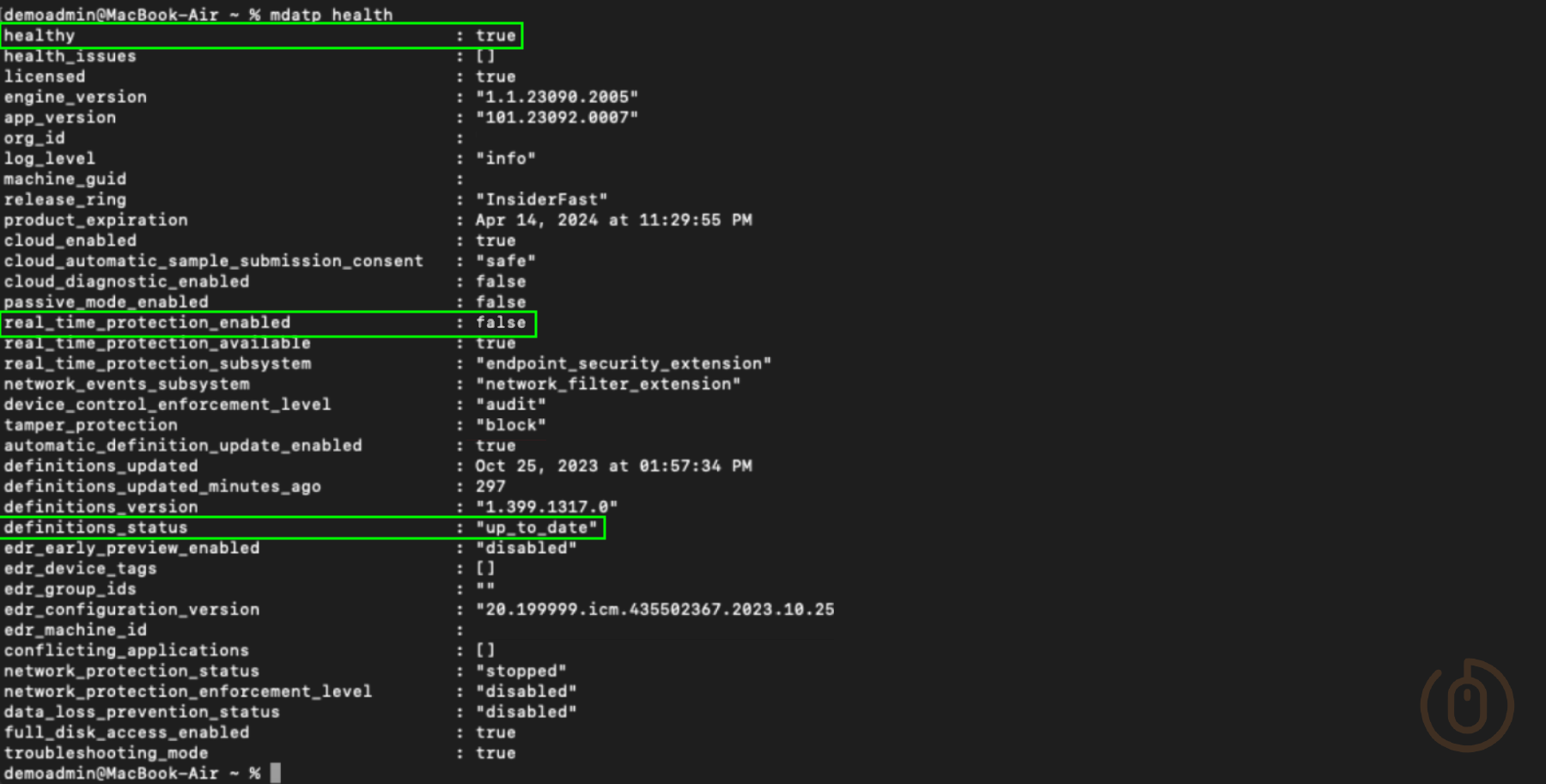
Using this command we can capture status of the settings healthy, definition_status and real_time_protection_enabled which can be used in the script, among with other things, to work out whether Defender is working as expected.
Detection Script
I’m not going to bore you with how the content of the discovery script was created, but there are a few things to note:
- The script will generate a log located in
/Library/Logs/Microsoft/IntuneScripts/Compliance/DefenderAntivirus.logfor troubleshooting. - The log file will rotate if it gets too large.
- It checks that Defender is actually installed and the antivirus daemon is running.
- It checks for the status of the three items captured from
mdatp health(healthy, definition_status and real_time_protection_enabled). - Each check will result in a
trueorfalse. - It outputs the required JSON object and exits with a
smile0.
You can grab a copy of the script from my GitHub repo.
#!/bin/bash
# =============================================================
# Defender Antivirus Compliance Script for Intune
# Checks: Installation, health, running, real-time protection, and Definition status
# Author : Nick Benton
# Logs to: /Library/Logs/Microsoft/IntuneScripts/Compliance/DefenderAntivirus.log
# Output : single-line JSON to stdout | Exit 0
# =============================================================

# User Defined variables
scriptName="DefenderAntivirus"
logDir="/Library/Logs/Microsoft/IntuneScripts/Compliance"
logFile="$logDir/$scriptName.log"
maxLogSize=1048576 # 1 MB rotation threshold

# logging
if [[ ! -d "$logDir" ]]; then
	mkdir -p "$logDir"
fi

if [[ -f "$logFile" ]]; then
	logSize=$(stat -f%z "$logFile" 2>/dev/null || echo 0)
	[[ "$logSize" -gt "$maxLogSize" ]] && mv "$logFile" "${logFile}.1"
fi
touch "$logFile" 2>/dev/null
chmod 644 "$logFile" 2>/dev/null

# functions
log() { echo "$(date '+%Y-%m-%d %H:%M:%S') | $1" >>"$logFile"; }

# Log a check: ID | raw value read | evaluated result
logcheck() { log "$1 | raw='$2' | result=$3"; }

consoleUser=$(stat -f%Su /dev/console)
log "=============================================================="
log "RUN START | user=$(whoami) | consoleUser=$consoleUser | tty=$([[ -t 0 ]] && echo yes || echo no) | PATH=$PATH"
log "macOS: $(sw_vers -productVersion) ($(sw_vers -buildVersion))"
log "=============================================================="

# Compliance checks
log "Checking Microsoft Defender Antivirus"
MDATP="/usr/local/bin/mdatp"
if [[ -x "$MDATP" ]]; then
	log "Microsoft Defender Antivirus is installed"
	defenderInstalled="true"

	# Check if Defender service is running
	pgrep -x "wdavdaemon" >/dev/null 2>&1 && defenderRunning="true" || defenderRunning="false"

	# Check health status
	healthy=$("$MDATP" health --field healthy 2>/dev/null | tr -d '"')
	[[ "$healthy" == "true" ]] && defenderHealthy="true" || defenderHealthy="false"
	logcheck "Defender-Healthy (mdatp health healthy)" "$healthy" "$defenderHealthy"

	# Check real-time protection status
	realTimeProtection=$("$MDATP" health --field real_time_protection_enabled 2>/dev/null | tr -d '"')
	[[ "$realTimeProtection" == true* ]] && defenderRealTimeProtection="true" || defenderRealTimeProtection="false"
	logcheck "Defender-RealtimeProtectionEnabled (mdatp health real_time_protection_enabled)" "$realTimeProtection" "$defenderRealTimeProtection"

	# Get definitions status - check if they're up to date
	definitionsCurrent=$("$MDATP" health --field definitions_status 2>/dev/null | tr -d '"')
	[[ "$definitionsCurrent" == "up_to_date" ]] && defenderDefinitionsCurrent="true" || defenderDefinitionsCurrent="false"
	logcheck "Defender-DefinitionsUpToDate (mdatp health definitions_status)" "$definitionsCurrent" "$defenderDefinitionsCurrent"

else
	log "Microsoft Defender Antivirus is not installed"
	defenderInstalled="false"
	defenderRunning="false"
	defenderHealthy="false"
	defenderRealTimeProtection="false"
	defenderDefinitionsCurrent="false"
fi

json="{\"Defender-Installed\": $defenderInstalled, \"Defender-Running\": $defenderRunning, \"Defender-Healthy\": $defenderHealthy, \"Defender-RealtimeProtectionEnabled\": $defenderRealTimeProtection, \"Defender-DefinitionsUpToDate\": $defenderDefinitionsCurrent}"
log "SUBMITTED JSON: $json"
fails=$(echo "$json" | grep -o "false" | wc -l | tr -d ' ')
log "=============================================================="
log "RUN END | non-compliant settings: $fails"
log "=============================================================="

echo "$json"
exit 0
Validation
For the JSON validation file, other than making sure the output of the discovery script settings names match, the format is as per the Microsoft guidance (well almost 😂), and the DataType is set to Boolean (true or false), everything else is just niceties for the end user; basically what is shown to them if a setting is non-compliant in the Company Portal.
{
  "Rules": [
    {
      "SettingName": "Defender-Installed",
      "Operator": "IsEquals",
      "DataType": "Boolean",
      "Operand": true,
      "MoreInfoUrl": "https://learn.microsoft.com/en-us/microsoft-365/security/defender-endpoint/microsoft-defender-endpoint-mac",
      "RemediationStrings": [
        {
          "Language": "en_US",
          "Title": "Microsoft Defender not installed",
          "Description": "Microsoft Defender for Endpoint must be installed on this device. Please contact IT support for assistance."
        }
      ]
    },
    {
      "SettingName": "Defender-Healthy",
      "Operator": "IsEquals",
      "DataType": "Boolean",
      "Operand": true,
      "MoreInfoUrl": "https://learn.microsoft.com/en-us/microsoft-365/security/defender-endpoint/microsoft-defender-endpoint-mac",
      "RemediationStrings": [
        {
          "Language": "en_US",
          "Title": "Microsoft Defender - Unhealthy",
          "Description": "Microsoft Defender for Endpoint is not healthy on this device. Please contact IT support for assistance."
        }
      ]
    },
    {
      "SettingName": "Defender-Running",
      "Operator": "IsEquals",
      "DataType": "Boolean",
      "Operand": true,
      "MoreInfoUrl": "https://learn.microsoft.com/en-us/microsoft-365/security/defender-endpoint/microsoft-defender-endpoint-mac",
      "RemediationStrings": [
        {
          "Language": "en_US",
          "Title": "Microsoft Defender - Not Running",
          "Description": "Microsoft Defender for Endpoint service is not running. Please restart the application or contact IT support."
        }
      ]
    },
    {
      "SettingName": "Defender-RealtimeProtectionEnabled",
      "Operator": "IsEquals",
      "DataType": "Boolean",
      "Operand": true,
      "MoreInfoUrl": "https://learn.microsoft.com/en-us/microsoft-365/security/defender-endpoint/mac-preferences#enable-real-time-protection",
      "RemediationStrings": [
        {
          "Language": "en_US",
          "Title": "Microsoft Defender - Real-time Protection Disabled",
          "Description": "Real-time protection must be enabled in Microsoft Defender. Open Microsoft Defender and enable real-time protection, or contact IT support."
        }
      ]
    },
    {
      "SettingName": "Defender-DefinitionsUpToDate",
      "Operator": "IsEquals",
      "DataType": "Boolean",
      "Operand": true,
      "MoreInfoUrl": "https://learn.microsoft.com/en-us/microsoft-365/security/defender-endpoint/mac-updates",
      "RemediationStrings": [
        {
          "Language": "en_US",
          "Title": "Microsoft Defender - Antivirus Definitions Out of Date",
          "Description": "Your Microsoft Defender antivirus definitions are not current. Please update Microsoft Defender or contact IT support if the issue persists."
        }
      ]
    }
  ]
}
The JSON file is available in GitHub, feel free to update the values in the RemediationStrings with your own wording and links, but leave the SettingName alone, or else 😶.
Microsoft Intune Compliance
With both required files now at your disposal, we can finally move away from the console and get back to the comfy GUI that is Microsoft Intune.
Compliance Script
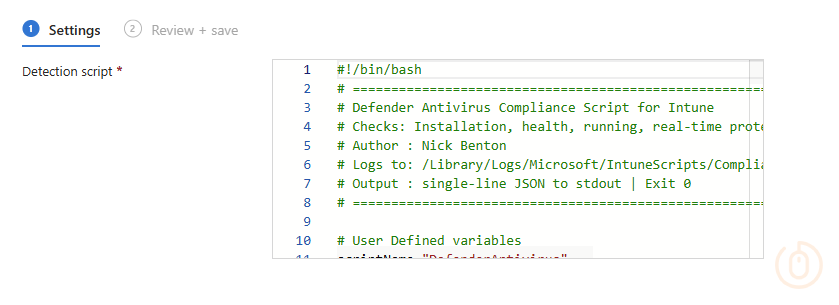
Navigate to Devices > Compliance > Scripts and select Add choosing macOS from the drop down, give the compliance script a useful name, and annoyingly, copy and paste the script into the Detection Script pane (honestly Microsoft this should be an upload 🤨)
Compliance Policy
Wait a little bit, like go grab a coffee, then come back and we can create a new macOS compliance policy. Same deal as before, give the policy a useful name, select Require under Custom Compliance, then select Click to select and chose your uploaded script from the list.
Once you’ve done that you need to upload (see it’s not that hard is it Microsoft) your JSON file so that the policy has something to validate the script against.
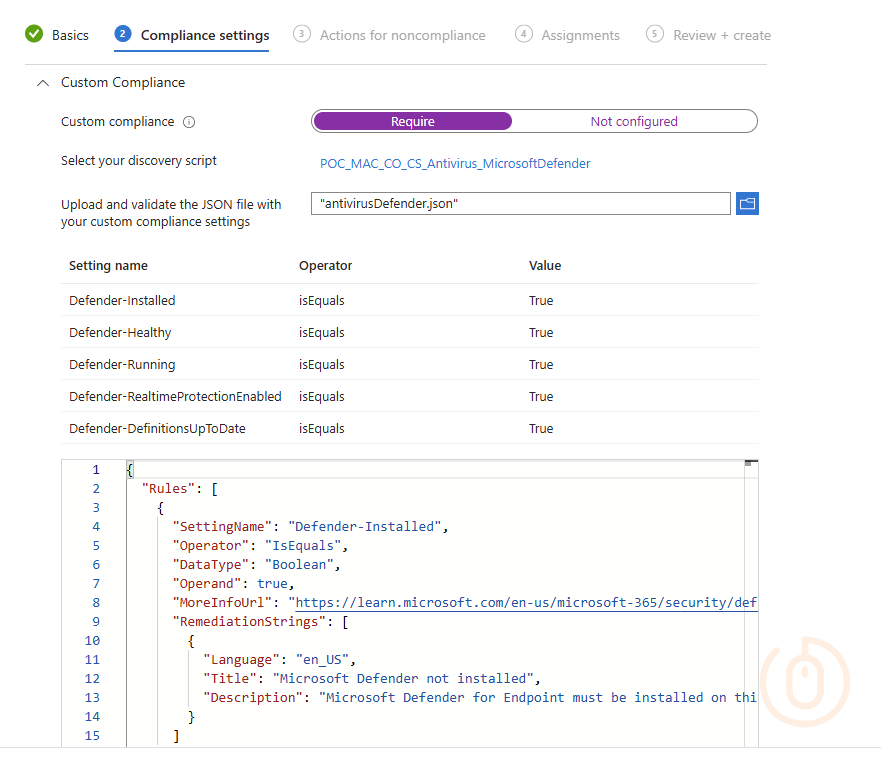
Go ahead and assign this to some test devices to make sure all is working, before fat fingering a deployment to all your macOS devices.
Results
And after some (honestly it’s pretty quick by normal Intune standards), you should start to see devices receive the policy and evaluate against it.
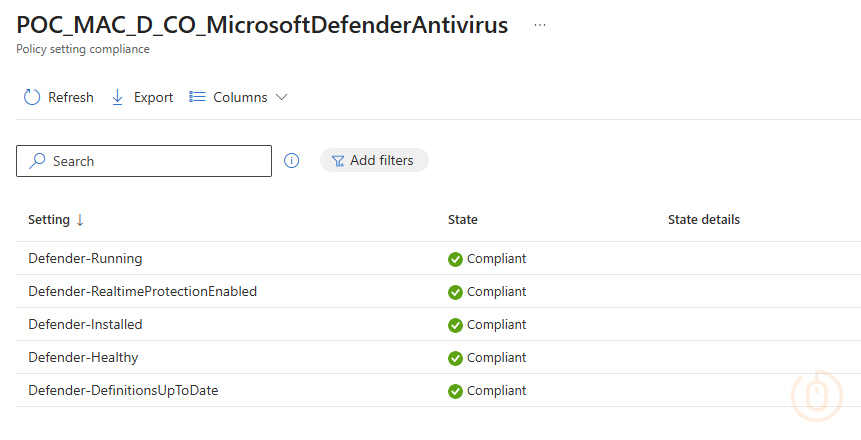
/Library/Logs/Microsoft/IntuneScripts/Compliance/DefenderAntivirus.log to see if the script has actually run.Summary
Custom compliance still has it’s troubles, with slow evaluation times and reporting (though it feels better on macOS than on Windows, go figure), but we’re another step closer to macOS in Microsoft Intune being a supported enterprise level operating system, with management functionality edging toward that of Windows devices.
If you want a deeper dive into custom compliance on macOS, and who wouldn’t, check out the post from Somesh Pathak who goes to the lengths of evaluating CIS compliance using this new functionality, or the post from SS Mac Admin who provides multiple custom compliance examples.