 odds+endpoints
Updating Event Log Sizes with Intune and PowerShell
 Nick Benton on
Whether implementing good practice controls, or extending your device security posture using App Control for Business, log files are your friend...until they fill up.

If you’ve ever implemented AppLocker or its bigger security heavy sibling formerly known as Windows Defender App Control, App Control for Business, you’ve likely been nope knees deep in either event logs on local machines, or trying your hand at advanced hunting in Defender for Endpoint.
What makes life difficult about trawling through local event logs, or parsing them using the App Control Wizard 🧙, is that they’re only 1028KB large.
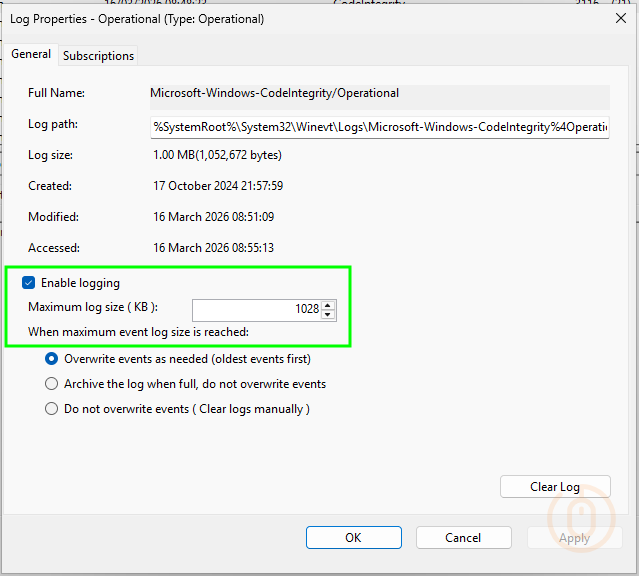
Meaning that your investigation is likely going to come up short when the logs start deleting themselves. But there must be a native way to change the maximum log size of these critical event logs?
Event Logs
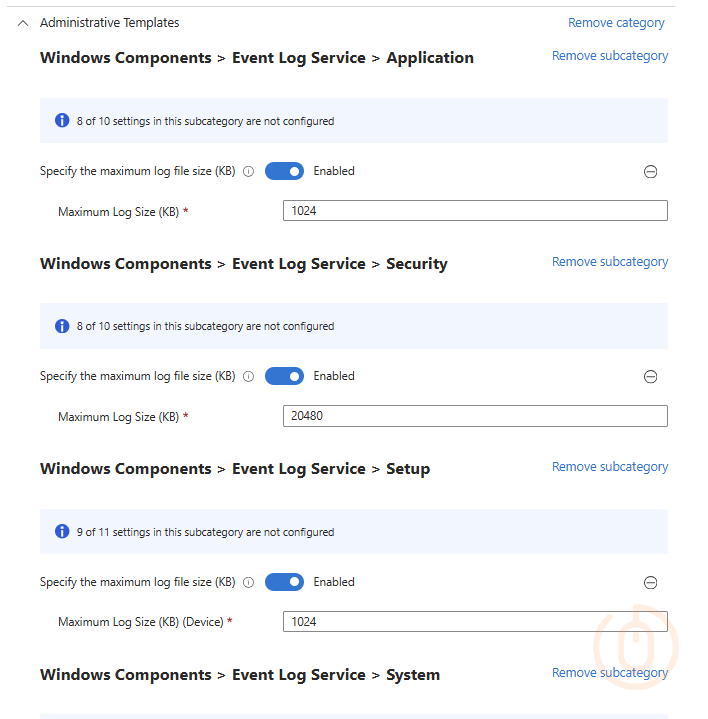
Well there isn’t.
At least not for event logs that aren’t your standard Application, Security, Setup, and System logs.
So what do we want to do tonight? The same thing we do every night, try to take over the world to fix things with PowerShell 🐭.
PowerShell Logic
So all we need is a way to detect the current size of our event logs, and if they aren’t good enough, to set them to a new size.
As always, Microsoft has done a pretty good job at documenting the process using the Get-WinEvent command, so we’ll lean on that to loop through the event logs we want to update.
For completions sake, we’ll be updating the log size for all the AppLocker event logs, not just those used by App Control for Business, so either using your eyes and event viewer, or using PowerShell (Get-WinEvent -ListLog *) we can get a list of event logs and the names of the ones we want to tamper fiddle mess with.
- Microsoft-Windows-AppLocker/EXE and DLL
- Microsoft-Windows-AppLocker/MSI and Script
- Microsoft-Windows-AppLocker/Packaged app-Deployment
- Microsoft-Windows-AppLocker/Packaged app-Execution
- Microsoft-Windows-CodeIntegrity/Operational
We can throw these with their desired sizes as a PSCustomObject into an array, so that both the detection and remediation script can use this data to set the new event log size.
So now with the basic setup done with, now all that’s needed is the detection and remediation scripts.
Detection Script
For each of your event logs, make sure you are using the correct name, and a suitable size, for this example each log will be set to 10MB.
We’re also capturing which event logs don’t match the set size in the $remediateOutput array variable, so we can output that in the event that the current log size doesn’t match.
$logs = @()
$logs += [PSCustomObject]@{Name = 'Microsoft-Windows-AppLocker/EXE and DLL'; Size = 10MB }
$logs += [PSCustomObject]@{Name = 'Microsoft-Windows-AppLocker/MSI and Script'; Size = 10MB }
$logs += [PSCustomObject]@{Name = 'Microsoft-Windows-AppLocker/Packaged app-Deployment'; Size = 10MB }
$logs += [PSCustomObject]@{Name = 'Microsoft-Windows-AppLocker/Packaged app-Execution'; Size = 10MB }
$logs += [PSCustomObject]@{Name = 'Microsoft-Windows-CodeIntegrity/Operational'; Size = 10MB }

try {
    $remediateCount = 0
    $remediateOutput = @()
    foreach ($log in $logs) {
        $eventLog = Get-WinEvent -ListLog $log.Name -ErrorAction SilentlyContinue
        if ($eventLog) {
            if ($eventLog.MaximumSizeInBytes -ne $log.Size) {
                $remediateCount++
                $remediateOutput += "Event log $($log.Name) is configured with size $($eventLog.MaximumSizeInBytes) bytes, expected size is $($log.Size) bytes"
            }
        }
        else {
            continue
        }
    }

    if ($remediateCount -gt 0) {
        Write-Output $($remediateOutput -join ", ")
        exit 1
    }
    else {
        Write-Output 'All event log(s) are configured correctly.'
        exit 0
    }
}
catch {
    Write-Error $_.Exception.Message
    Exit 2000
}
Remediation Script
We don’t need the remediation script to be pretty, just functional so when the event log current size doesn’t match the required size, it will update it.
$logs = @()
$logs += [PSCustomObject]@{Name = 'Microsoft-Windows-AppLocker/EXE and DLL'; Size = 10MB }
$logs += [PSCustomObject]@{Name = 'Microsoft-Windows-AppLocker/MSI and Script'; Size = 10MB }
$logs += [PSCustomObject]@{Name = 'Microsoft-Windows-AppLocker/Packaged app-Deployment'; Size = 10MB }
$logs += [PSCustomObject]@{Name = 'Microsoft-Windows-AppLocker/Packaged app-Execution'; Size = 10MB }
$logs += [PSCustomObject]@{Name = 'Microsoft-Windows-CodeIntegrity/Operational'; Size = 10MB }

try {s
    foreach ($log in $logs) {
        $eventLog = Get-WinEvent -ListLog $log.Name -ErrorAction SilentlyContinue
        if ($eventLog) {
            if ($eventLog.MaximumSizeInBytes -ne $log.Size) {
                $eventLog.MaximumSizeInBytes = $log.Size
                $eventLog.SaveChanges()
                Write-Output "Remediated event log $($log.Name) to size $($log.Size)."
            }
        }
        else {
            continue
        }
    }
}
catch {
    Write-Error $_.Exception.Message
    exit 2000
}Proactive Remediations
With the above scripts in hand, wander over to Intune and deploy them to your devices with reckless abandon with the settings below.
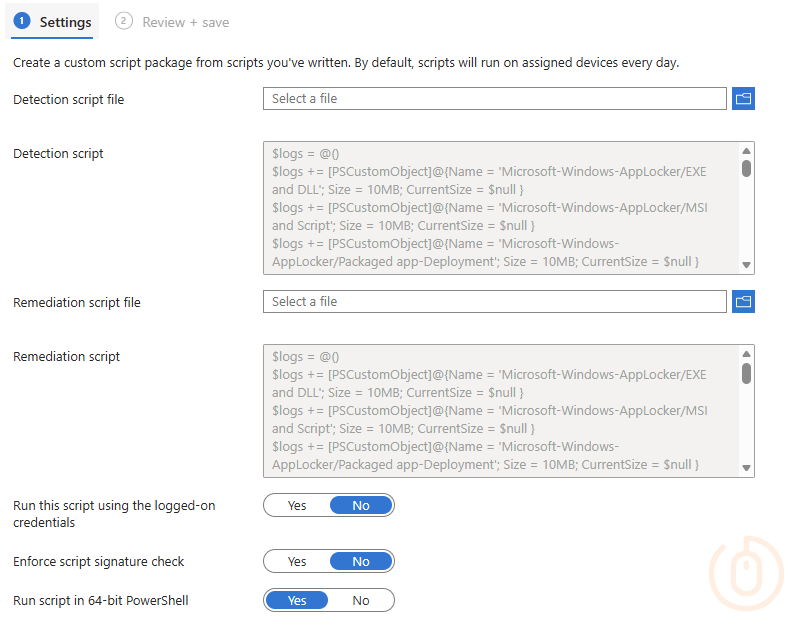
And after a little patience your devices will start reporting their event log sizes, and updating them.
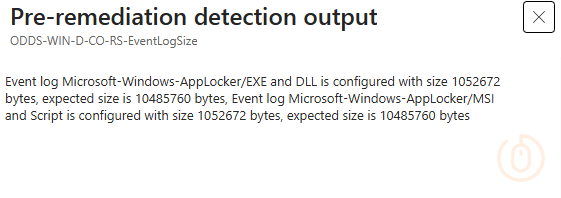
$remediateOutput array variable to make it a string, otherwise Intune will only output the last entry in the array, and that’s pretty useless 😅.Checking on the device we can see that it has actually updated the log size.
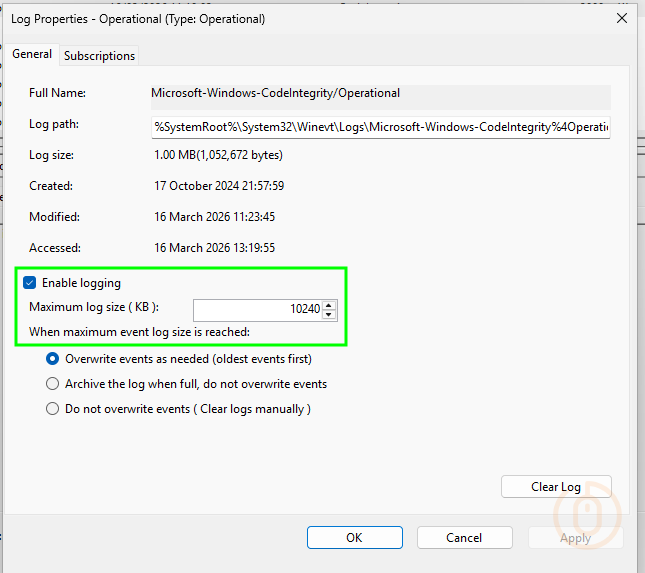
Which will hopefully make hunting through event logs a little more fruitful as part of your App Control for Business implementation.
Summary
It shouldn’t be that difficult to increase the event log size, especially of actual Microsoft event logs, but until there’s a nicer Intune native way to do it, you’re going to have to rely on good ol’ PowerShell and friendly folks like myself to patch the gaps in Microsoft device management tooling 😇.